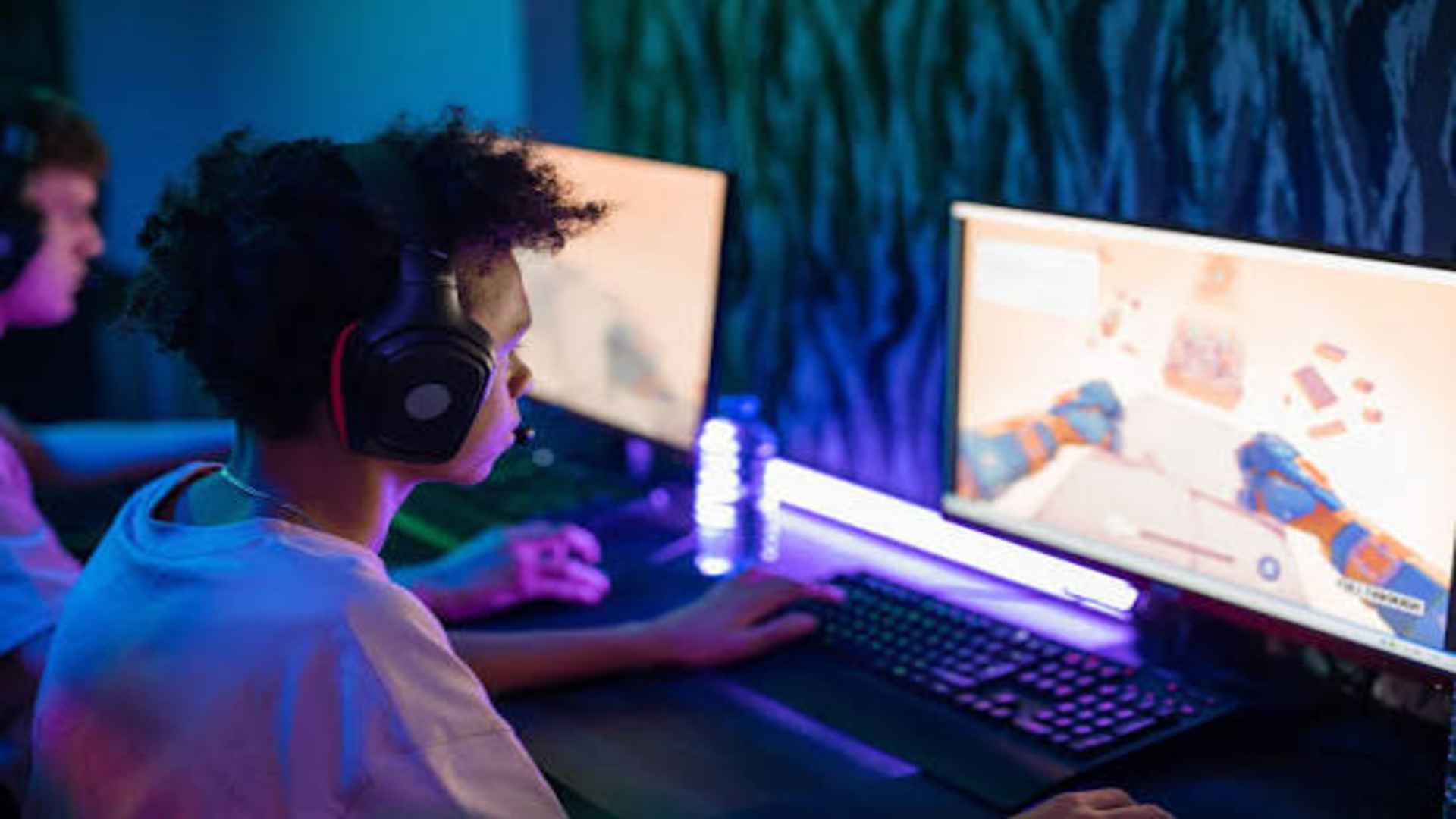
Running a dual-monitor setup enhances productivity and gaming, but it can be frustrating when a game opens on the secondary screen instead of your primary display. This issue often occurs due to display configuration glitches, outdated graphics settings, or full-screen mode defaults. Fortunately, relocating your game to the correct monitor is simple and requires only a few straightforward adjustments.
Using Windows Keyboard Shortcuts
The quickest way to move a running game between screens is using built-in operating system shortcuts. Pressing the Shift key along with the Windows key and the left or right arrow keys moves the active window directly to the adjacent display. This command works instantly for games operating in windowed or borderless full-screen modes.
If the game is running in exclusive full-screen mode, it might temporarily minimize or flicker during the transition. Simply restoring the window on the target monitor resolves the alignment automatically. Memorizing this shortcut saves valuable time whenever display preferences reset unexpectedly.
Adjusting In-Game Display Settings
Most modern video games include native options for selecting a preferred output monitor directly within their graphics menus. Accessing the video settings allows you to choose your primary monitor from a dropdown menu without altering system-wide configurations. Changing the display mode to borderless windowed mode often provides the smoothest transitions.
If your game lacks a monitor selection menu, switching from full-screen to windowed mode temporarily allows you to drag the window over to the preferred screen. Once placed on the correct display, switching back to full-screen mode saves the new location for future gaming sessions.
Setting Your Primary Display in Windows
Windows determines where full-screen applications launch based on your system's primary display designation. Right-clicking the desktop and selecting Display Settings lets you identify and rearrange your active screens. Selecting your main gaming monitor and checking the option to make it your main display ensures games launch there by default.
Sometimes Windows misidentifies monitor order after driver updates or hardware changes. Reassigning the primary monitor re-establishes correct application placement across all software. This configuration prevents future launching errors across your entire library.
Configuring Graphics Driver Software
Both NVIDIA Control Panel and AMD Software offer advanced management tools for multi-monitor arrangements. Opening your graphics management software allows you to set global display rules and program-specific GPU assignments. Ensuring your main display is recognized as display number one helps avoid software routing confusion.
Updating your graphics drivers regularly fixes persistent display detection bugs that cause games to launch on secondary screens. Proper configuration within driver software guarantees consistent performance and correct screen positioning for all demanding titles.