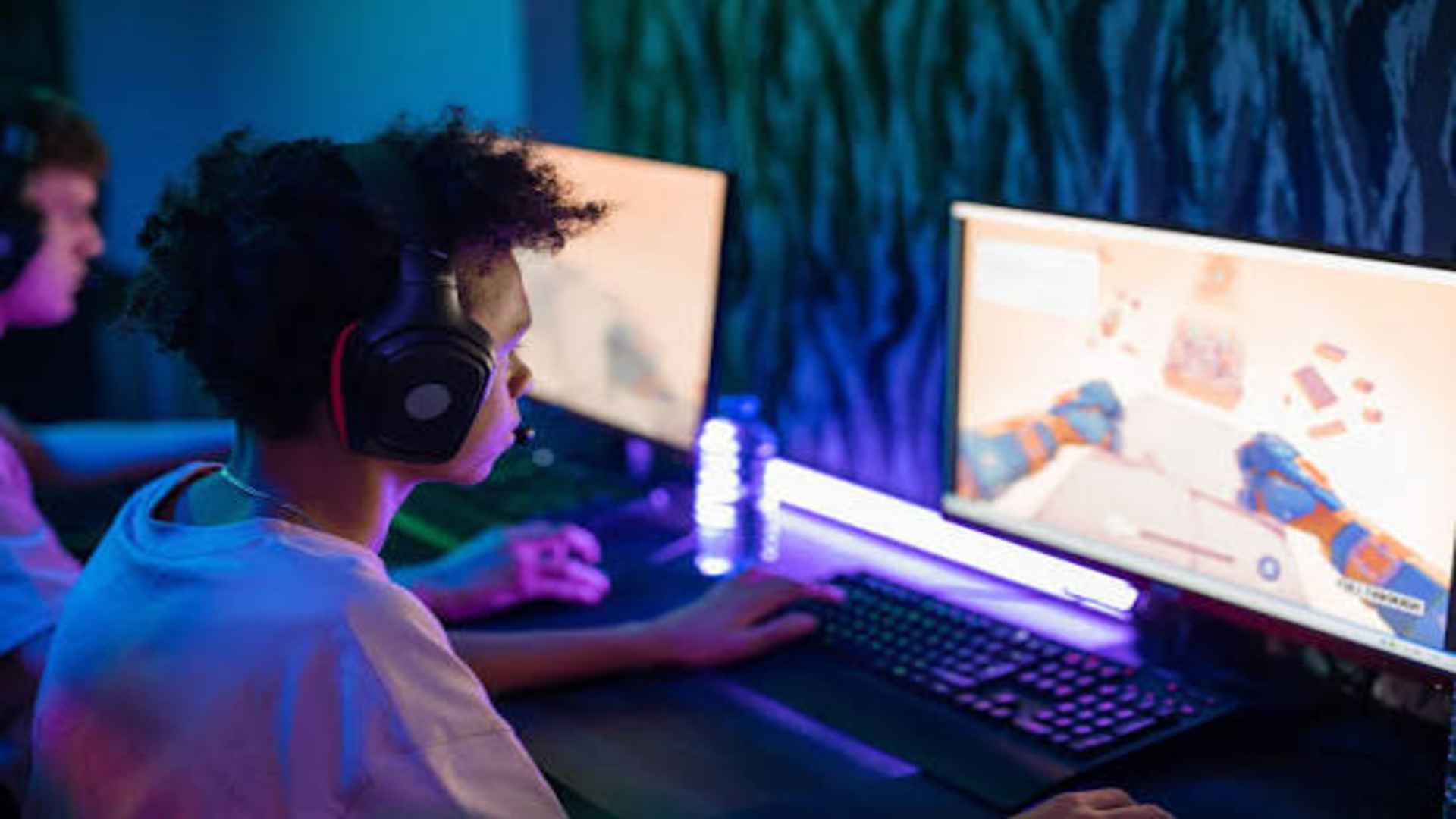
Cross-platform gaming continues to gain popularity, leading many computer gamers to seek simple ways to chat with friends on console networks. While Sony does not offer a standalone PlayStation Party desktop application for Windows, PC users can still join console voice parties through official workarounds. Understanding these available methods helps players choose the most reliable communication setup for their gaming sessions.
Using PS Remote Play for Direct Party Access
The primary way to access native PlayStation party chat from a desktop is through Sony's official Remote Play software. By installing this application, users can connect to their linked PS4 or PS5 console over a high-speed internet network. Once connected, players can navigate the console dashboard directly on their PC screen to join active voice parties.
This method routes microphone input and party audio seamlessly through your computer's connected headset. However, it requires an active console powered on or set in rest mode to function properly. It remains the best choice for players who want authentic console party features without holding a phone or using secondary devices.
Connecting via Discord Voice Integration
Discord has become the standard platform for cross-platform voice communication across modern gaming ecosystems. Sony offers full Discord account integration for PlayStation 5 users, allowing players to transfer voice calls directly to their console. PC users can join a Discord channel on their computer while their console friends transfer the same call onto their PS5 system.
This approach eliminates the need to run Remote Play or keep extra streaming hardware running in the background. It provides crystal-clear audio quality and low latency for every participant regardless of their platform. For mixed lobbies, Discord stands out as the most efficient modern solution.
Hardware and Network Requirements for PC Users
Setting up voice chat through PC requires meeting specific hardware and network standards for optimal performance. To use PS Remote Play, your Windows system should run at least a 7th-generation Intel processor along with a stable internet connection. A compatible DualShock 4 or DualSense controller connected via USB cable is also required to navigate the dashboard interface.
Audio settings within the software must be adjusted to use your computer microphone for voice input. Ensuring your PC sound settings point to the correct output device prevents echo and sound dropouts during match sessions. High upload and download speeds remain essential to prevent voice lag.
Alternative Mobile and Audio Mix Methods
Gamers who prefer not to use Remote Play can utilize the PlayStation App on iOS or Android mobile devices. By joining a party on your phone, you can route the audio to your headset alongside PC game audio using a mixer or aux line-in cable. While this setup requires additional cables or dual-device Bluetooth connections, it avoids streaming data over your local network.